Issue your company’s buyer PO to a supplier for local or overseas purchasing.
Notes
- PO covers local and overseas orders; there is no separate LPO document.
- Existing staff roles need the new Purchase Order permissions granted explicitly; workspace owners have them subject to their access mode.
- Draft and issued commercial snapshots are retained unchanged. Creating or emailing a PO does not record payment, change quotation acceptance or close work.
- Sponsored limited partners can receive their direct buyer’s issued PO and acknowledge it; they cannot create buyer POs.
How to use this function
- Open Purchase orders from Company Home. Create from an accepted received partner quotation or enter a manual PO for an external supplier.
- From Partner quotations, an accepted received quotation also offers Create purchase order. Its supplier, exact version, lines, prices, scope and terms are copied unchanged.
- The issuer’s Company profile layout is used, including uploaded Custom header/footer. A small light SSF OPS credit sits at bottom right.
- For a manual order, complete the separate Order details, Supplier details, Order items, Scope and terms, and Delivery sections. Review the copied quotation or your entries, then select Save draft PO.
- Use Approve PO with a reason, then Issue to supplier with a reason. A direct partner supplier can see the order only after issue.
- The supplier can acknowledge receipt. Under PDF and email, download or print the order. Send by email is visible but disabled for a draft or approved order; approve and issue first, then review the recipient, message and PDF attachment before sending. Check Email history for the result.
- To correct commercial details, cancel the order with a reason and draft a replacement. Review the order history.
- Download PDF preserves the reference-based filename. Print uses the same document title, but Microsoft Print to PDF may request a filename; use Copy filename and paste it in the save dialog.
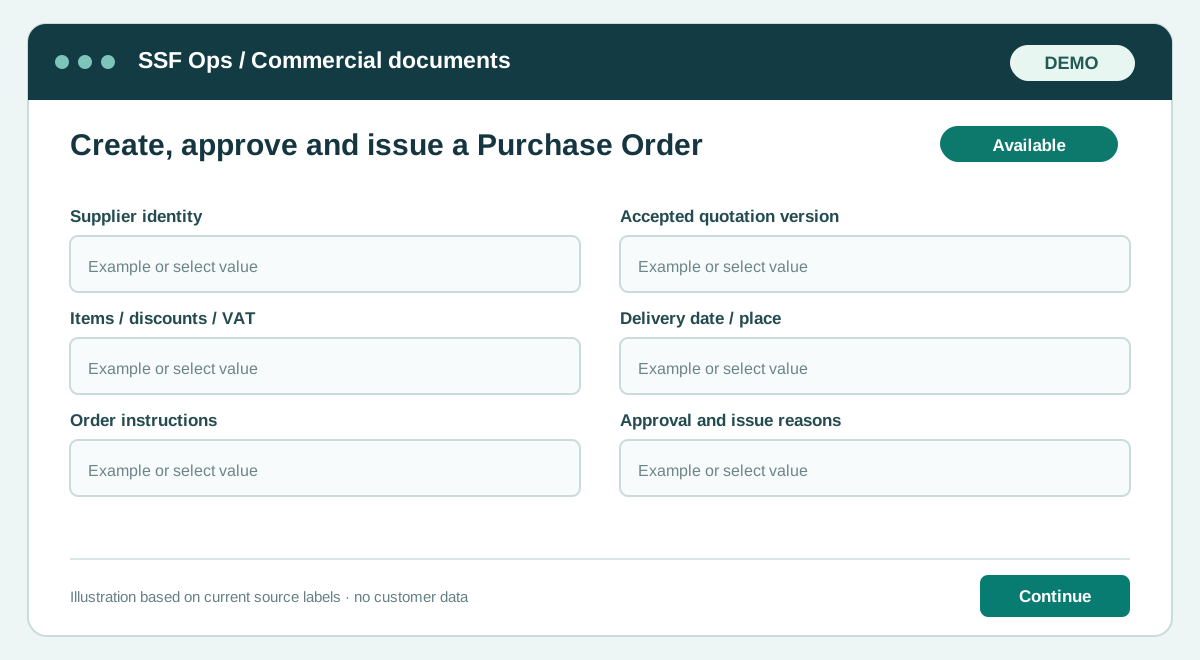
Fields and controls shown in the demo
- Supplier identity
- Accepted quotation version
- Items / discounts / VAT
- Delivery date / place
- Order instructions
- Approval and issue reasons
Guide updated 2026-10-08. Release changes must update this page and its image together.