
Open company quotation details in a popup and export the same A4 design used for partner documents.
How to use this function
- In Quotations, choose a customer and open a quotation row. Its detail opens in a popup.
- Review company and customer identity, items, totals, terms, chosen reference and quotation version. Internal notes are excluded from the customer document.
- Select Download PDF or Print / Save PDF. Print on A4 at 100% with browser headers and footers off.
- Approve a draft and mark it sent to enable email. Sending this email does not change acceptance or invoice status.
- Select Send by email, review recipient, message and downloadable attachment, tick the confirmation and select Send email.
- Review Email history. Mail-server acceptance does not confirm inbox delivery; an uncertain outcome should be checked before preparing a new request.
- Download PDF preserves the reference-based filename. Print uses the same document title, but Microsoft Print to PDF may request a filename; use Copy filename and paste it in the save dialog.
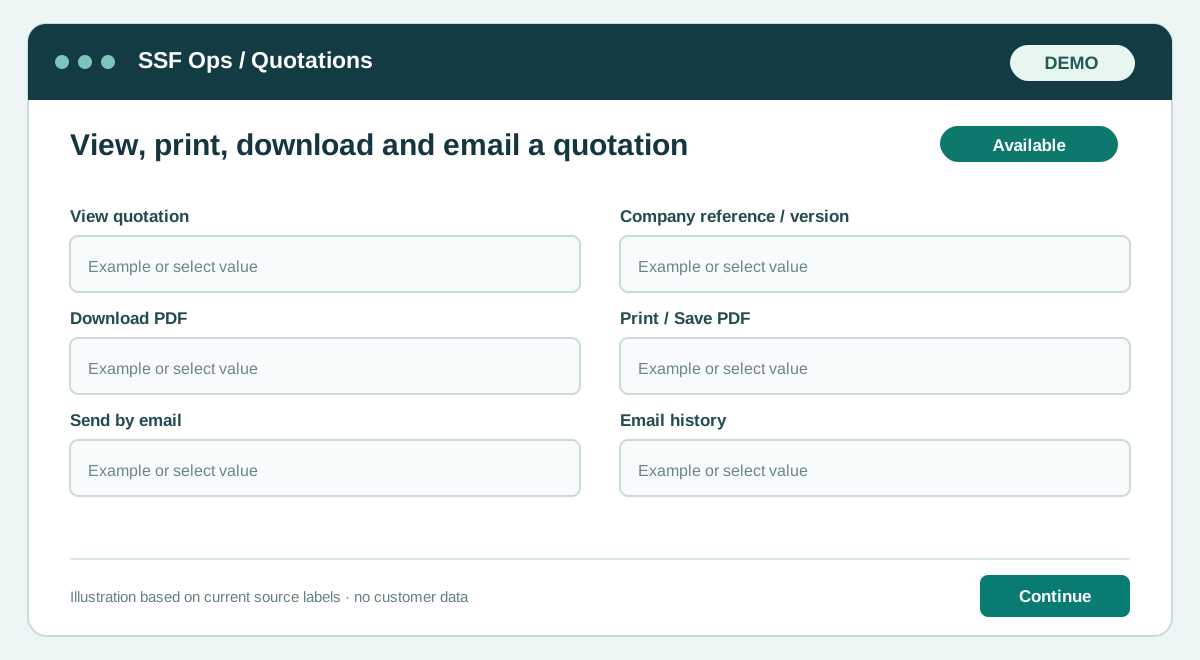
Fields and controls shown in the demo
- View quotation
- Company reference / version
- Download PDF
- Print / Save PDF
- Send by email
- Email history
Guide updated 2026-10-08. Release changes must update this page and its image together.