Use a partner invitation to create a sponsored workspace and save its own TEN login reference.
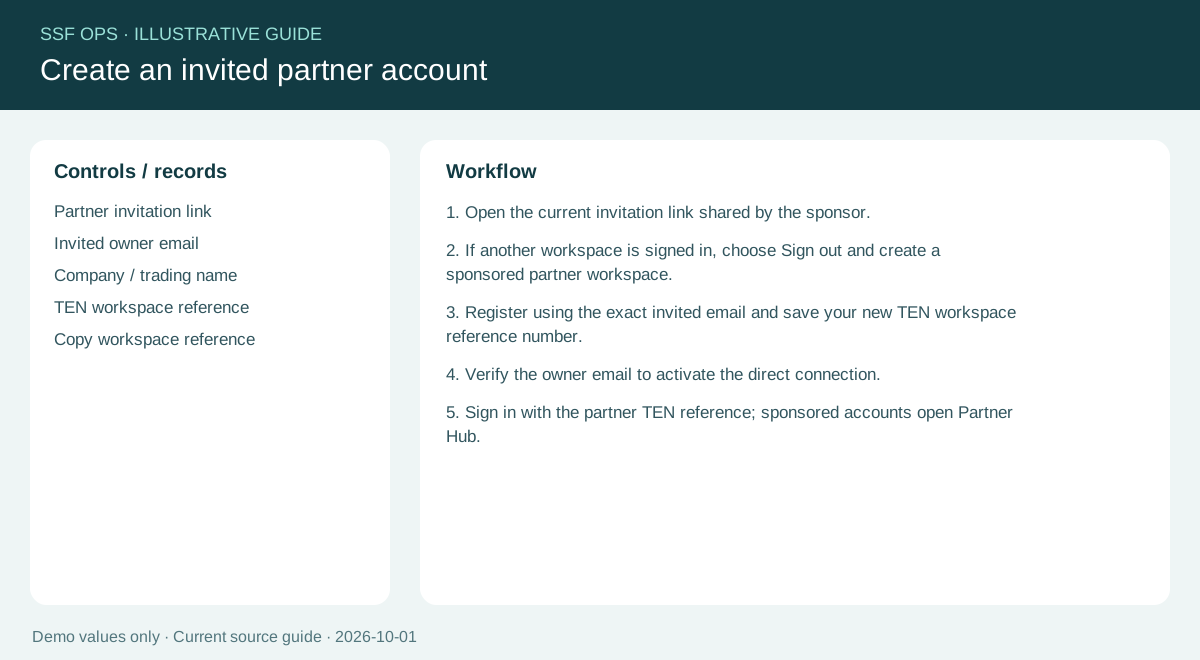
How to use this function
- Open the current invitation link shared by the sponsor.
- If another workspace is signed in, choose Sign out and create a sponsored partner workspace.
- Register using the exact invited email and save your new TEN workspace reference number.
- Verify the owner email to activate the direct connection.
- Sign in with the partner TEN reference; sponsored accounts open Partner Hub.
- Sponsored partners without a subscription can create up to three active operational sites for staff, teams, shifts and attendance. Inactive sites do not consume this allowance. Existing subscription site limits apply when subscribed.
- Sponsored accounts use Partner Hub. Company Home shows the full company menu as a preview. Locked features explain the time-saving and organisation benefits of full company membership; staff, teams and attendance links return to Partner Hub. Upgrade to full company membership to unlock independent company features; contact your SSF Ops administrator. Staff role restrictions remain separate from upgrade restrictions.
- Staff without partner-network read access land directly on their permitted attendance page. Menu items reflect role permissions; owners keep the partner overview.
Fields and controls shown in the demo
- Partner invitation link
- Invited owner email
- Company / trading name
- TEN workspace reference
- Copy workspace reference
Guide updated 2026-10-03. Release changes must update this page and its image together.