Prepare branded partner documents with detailed scope and product descriptions, then record quotation responses and cumulative payments.
How to use this function
- Partner owner: open Partner Hub → Document identity. Save your company name, address, email, phone, CR, VAT, footer, payment instructions and logo before preparing new documents.
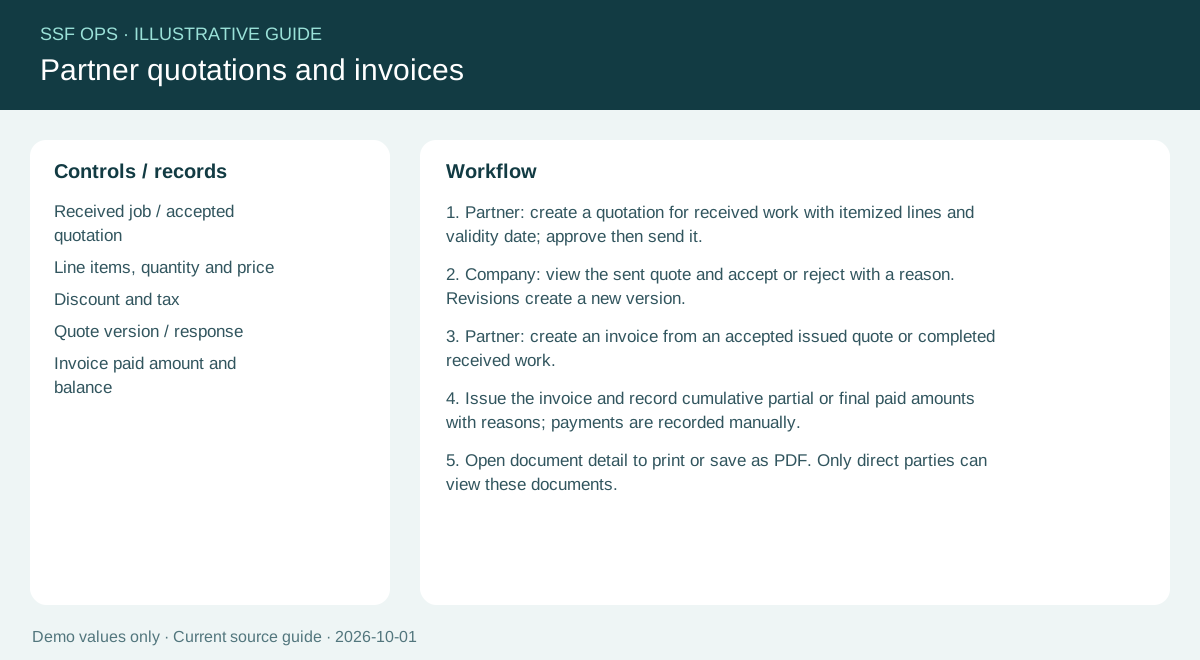
- Create quotation from received work. Enter a title, validity date, Scope of work / Description, and line items with positive whole-number quantities. Totals are calculated on the server.
- Click View to open the record in its own detail window. The required reason and action buttons appear above the document preview. Approve and send with a reason. The recipient sees Awaiting your response; the issuer sees Awaiting client response. The direct sponsoring company can accept or reject with a reason. Close or press Escape to return to the same list position.
- Create an invoice from an accepted quotation or completed received work. Quotation title, scope and lines are copied. Enter the required due date and an optional performed-work summary.
- Issue the invoice with a reason. Record the cumulative total paid to date, rather than the latest individual payment, for partial payments.
- Download PDF and Print / Save PDF are available at both the start and end of the preview. Download PDF saves a named file, for example PQT-20261004-142DC127-v3.pdf; browser settings control whether it asks for a folder. For browser printing use A4 at 100% scale with browser headers and footers off. Commercial details appear first, followed by a new Scope of work page. Every page includes a footer and page number. Microsoft Print to PDF controls its own save dialog and may not suggest a filename.
- New documents retain an identity snapshot; revisions and quotation-derived invoices retain the approved document identity. Documents created before this release display current configured document identity. Missing profile fields must be filled by the owner; SSFOPS does not invent details.
- Existing fractional quantities remain visible without rounding. To create or revise partner line items, explicitly replace fractional quantities with whole numbers. Copying an accepted legacy quotation to an invoice preserves its approved values.
- Send to partner shares the exact approved quotation version in the portal. After portal sharing, use Send by email as the issuer. For invoices, issue the invoice first. Review the configured sender and reply address, recipient email, subject, message and exact reference/version PDF attachment. Download the attachment for review, tick the confirmation and explicitly click Send email.
- Email history is separate from acceptance and payment status. Accepted by mail server confirms SMTP submission only; it does not prove inbox delivery. If the outcome is unconfirmed, check Mailpit or the mail provider before preparing another email. Retrying the same review reuses its request and does not resend it. External delivery needs a configured SMTP sender; staging Mailpit is a capture tool.
Fields and controls shown in the demo
- Received job / accepted quotation
- Line items, whole-number quantity and price
- Discount and tax
- Quote version / response
- Invoice paid amount and balance
- Email recipient, subject and message
- Reviewed reference/version PDF attachment
- Separate email submission history
Guide updated 2026-10-05. Release changes must update this page and its image together.